





Without folders
- Repairs, supplies, and routine checks share one long list.
- Finding related work takes extra searching.
- The team needs to remember how tasks belong together.
- New work is harder to place in context.
PRODUCT
Organize your work with folders and categories.
30-day free trial. No credit card required.
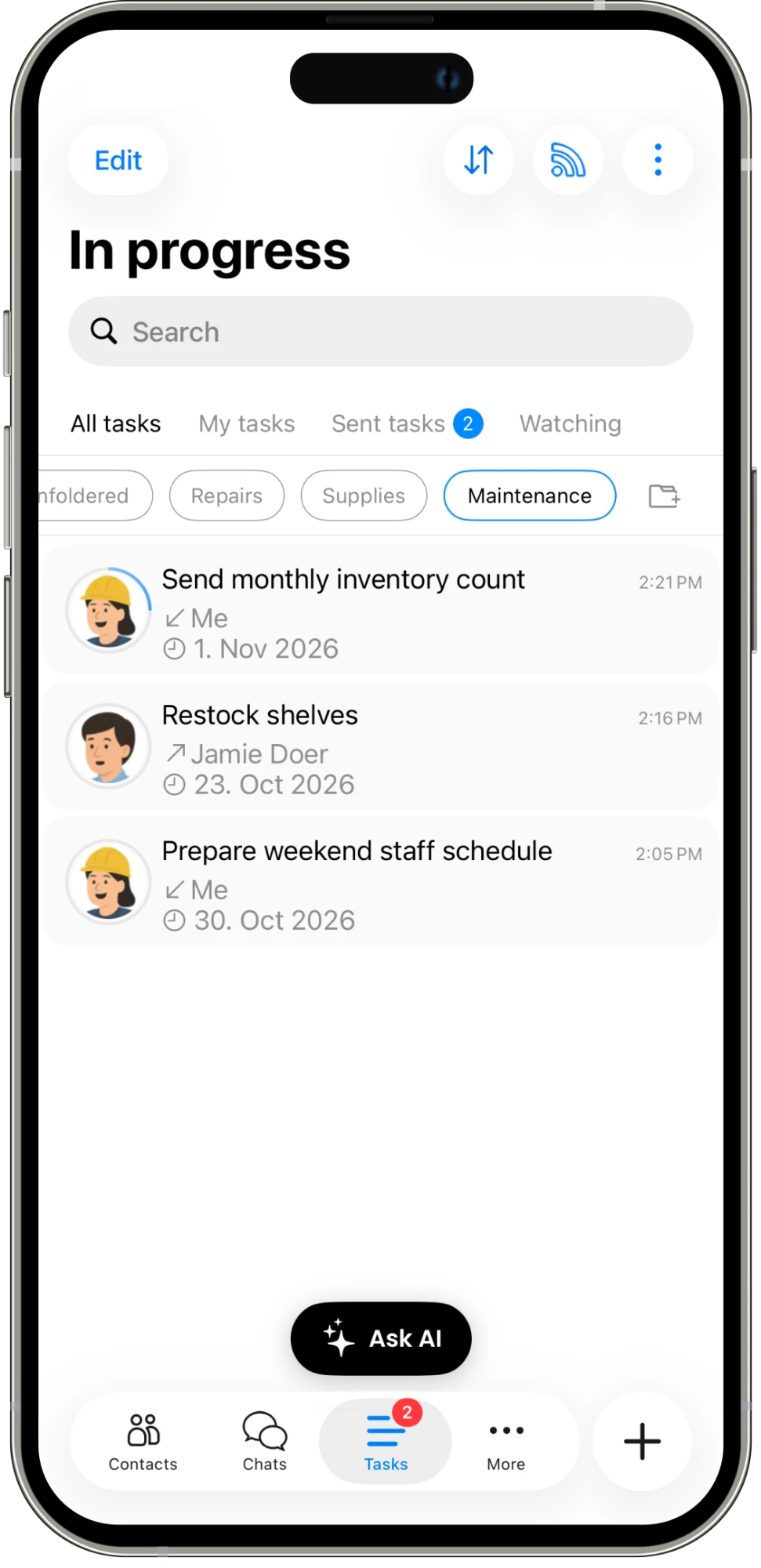
Keep repairs, supplies, maintenance, and other work in the right place. Folders and categories help your team focus on the tasks that matter to them.
01
Use folders to keep similar work together.
02
Select a folder to see its tasks in progress.
03
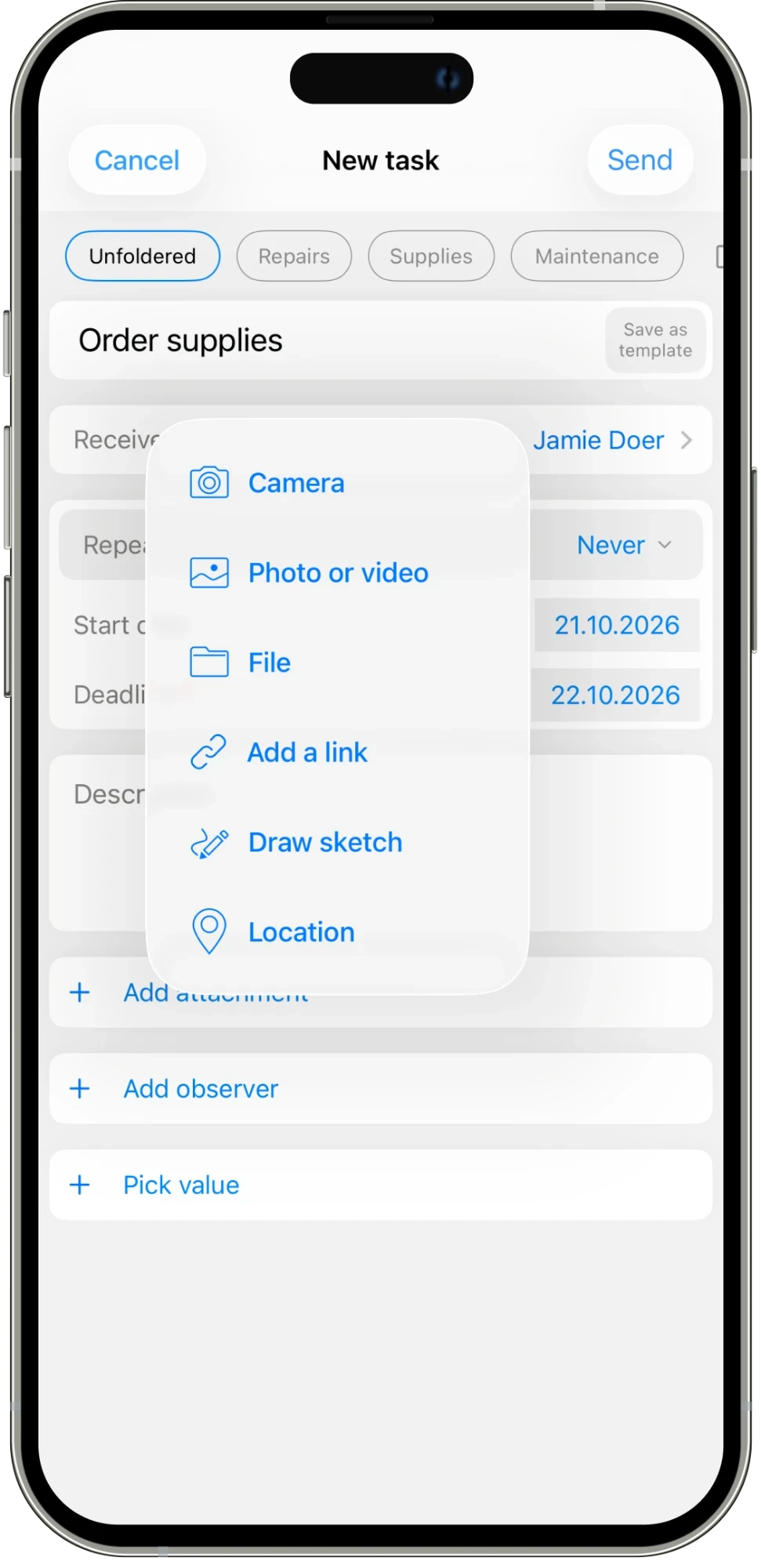
Place a new task in the right folder as you create it.
IN THE DETAILS
As the number of tasks grows, a single list can become harder to work through. Group repairs, supplies, maintenance, and other work in folders that make sense for your team. Select a folder to focus on that part of the operation. The task still keeps its receiver, deadline, progress, and conversation; the folder gives it a useful place alongside related work. Your team can find the category they need without losing the details.
CONNECTED WORK
Choose a folder when you create a task so the organization does not depend on a clean-up later. A supply order belongs with supplies, while a repair belongs with repairs. The same approach helps repeatable routines stay consistent over time. Keep categories simple enough for the team to recognize, and use them with task titles and deadlines to make the list easier to navigate during a busy day.
AN EVERYDAY EXAMPLE
A store team separates “Repairs,” “Supplies,” and “Maintenance.” The manager opens Repairs to focus on the freezer door, then switches to Maintenance to review the inventory count and shelf-restocking tasks. New supply orders are placed in Supplies as they are created.
Assign work, set deadlines, and schedule tasks that repeat.
Explore feature →
Message your team and keep each task’s conversation with the work.
Explore feature →
Get updates and keep everyone informed in one place.
Explore feature →
Organize your work with folders and categories.
Explore feature →
Send pictures, share media, and attach the files your team needs.
Explore feature →
Create sheets, collect answers with polls, and turn steps into checklists.
Explore feature →
Send a location so your team knows where to go.
Explore feature →
Track the time spent on work.
Explore feature →
Measure productivity and review work reports.
Explore feature →
Try Please Do It with your team, or walk through your day-to-day workflow with us.